 masalladelcloud
I’ve been managing infrastructure in Proxmox for a long time, and there’s something that always pains me to see in the logs: false SMART alarms from USB disks. Those constant warnings about attribute failures on removable devices don’t just generate noise; they can saturate your real alerts and make you lose credibility in your monitoring. In short, a pain in the neck, but one that has a quick fix.
Let’s get to it!
Recently, I had to resolve exactly this in my cluster. An external USB disk connected to a Proxmox node started reporting SMART errors every other minute, and after investigating, I discovered it’s a common problem: many cheap USB disks don’t correctly implement the SMART protocol, or simply lie about their status. The solution is simple but requires knowing exactly where to touch.
In this post, I’ll show you how to exclude specific USB disks from SMART monitoring in Proxmox without affecting the rest of your infrastructure.
The Problem: SMART Noise on USB Disks
If you have an external USB disk or a storage pendrive connected to your Proxmox server, you’re probably seeing SMART alerts like:

The reality is that many USB controllers do not report SMART reliably. It doesn’t mean your drive is garbage; it’s just that the USB firmware intercepts and misinterprets the SMART data.
Smartmontools, the daemon that Proxmox uses for SMART monitoring, doesn’t distinguish between reliable internal disks and questionable USB ones, so without manual intervention, you end up receiving false alerts constantly.
How to Identify Your USB Disk
First, you need to know exactly which device is your USB. Connect the disk and run:
lsblkYou’ll see something like this:

The Solution: Exclude the USB Disk from smartd
Proxmox uses smartmontools as a daemon service. The configuration resides in /etc/smartd.conf. This is the file that controls which disks it monitors and how.
Access the configuration file:
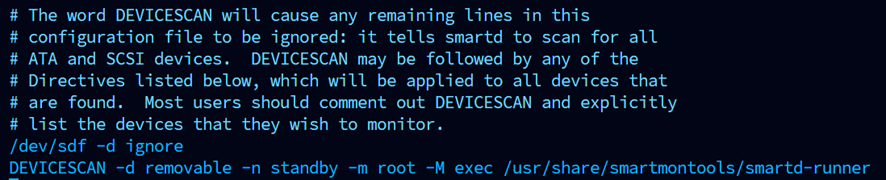
nano /etc/smartd.confLook for the DEVICESCAN line. You’ll find something similar to this:

Just above DEVICESCAN, we need to add the following. In my case, the hard drive is sdf; in your case, it might be sda, for example. Modify it with your drive’s identifier.
/dev/sdf -d ignoreOnce added, it should look like this:
If you used nano to edit the text, press Ctrl + X and then Y to save.
Restart smartd Service and Check Logs
Restart the smartd service for the changes to take effect:
systemctl restart smartdOnce restarted, check the logs:
journalctl -u smartmontools.service | grep sdfIt should look something like this:

Troubleshooting and Technical Considerations
Internal SATA/SAS vs USB disks
Never disable S.M.A.R.T. globally (systemctl stop smartmontools). You must exclude only the /dev/sdX or UUID of the USB drive by editing /etc/smartd.conf. Your system disks (ZFS/LVM) must remain monitored.
Problematic USB-SATA adapters Many cheap adapters have bridge controllers that corrupt Linux SMART calls. If you need absolute reliability and health reports for your backup pool, avoid using USB adapters and prioritize direct SATA connections or HBA cards.
Here we have, as always, another possible solution for the problems that arise in your Homelab or enterprise rack. If this post has helped you, share it with other administrators and engineers who can benefit. And follow me for more real experiences from the homelab trenches.