 masalladelcloud
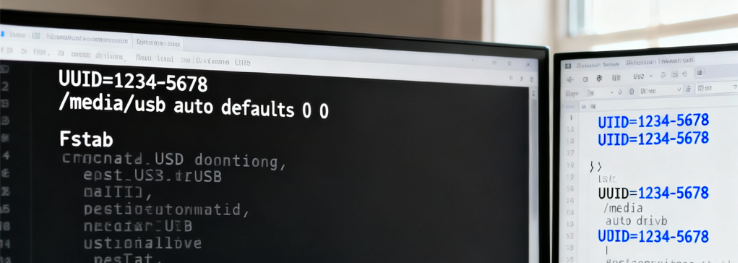
I’ve had to restart my Proxmox server many times, only to find hours later that errors start popping up because backups aren’t being performed.
This led me to investigate how to create a persistent mount in Linux, specifically for my Proxmox setup.
After analyzing and testing several sources, I found that configuring the FSTAB file with two simple parameters ensures the USB disk is mounted at all times.
Let’s dive in.
To have the USB disk mount automatically upon system startup, we need to add it to the FSTAB file. First, we need to know the disk’s UUID. This UUID is a unique identifier that allows the system to detect the disk and know it’s the right one to mount on every boot.
Identify the USB Disk
The following command will show a tree of disks and partitions. We should look for our disk there. I like to add the NAME, SIZE, and UUID variables to help identify the disk. The SIZE, in particular, helps guide us as it shows the total capacity of the drive.
lsblk -o NAME,SIZE,UUID
Modify the FSTAB File
Once we have the UUID, the next step is to modify the FSTAB file so that every time the system starts, the disk is mounted automatically.
The FSTAB file is located at /etc/fstab. You can use any text editor like nano or vi to modify it.
nano /etc/fstabInside the FSTAB file, add the UUID, mount folder (which must exist before adding this line), and other parameters:
- auto: Tells the system to automatically detect the filesystem type. If you know the filesystem (e.g., ext4), you can use that instead of “auto”.
- defaults: Applies default mount options (read/write, allows executing binaries, etc.).
- nofail: Allows the system to continue booting even if the device is not present or mounting fails, preventing a disconnection from blocking the startup.
- 0 0: The first zero disables the backup task. The second zero disables automatic filesystem checks during boot. This is not essential for external disks.
Here is an example of the line to add to the file:
UUID=YOUR-USB-DISK-UUID-8058-5bb898e8fb0d /mnt/usb3tb auto defaults,nofail 0 0Troubleshooting and Technical Considerations
Proxmox enters Emergency Mode on boot
If you add an entry to fstab with a typo, or the disk fails without the nofail option, the OS will hang on boot. Always add ,nofail to the mount options for removable USB drives.
Disk mounts in Read-Only mode
This usually happens if NTFS or exFAT file systems detect a previous abrupt disconnection. Plug the drive into a Windows system, run chkdsk /f, and mount it back into Proxmox.
With this, you’ll have your external USB hard drive mounted. Quick, easy, and simple. And as I always like to say: If this post has helped you, share it with other administrators who can benefit. And follow me for more real experiences from the homelab trenches.