 masalladelcloud

Today we’re going to talk about a memory RAM issue I encountered in my Homelab.
Basically, what was happening was that every time I logged into the Proxmox dashboard, I saw in the Summary section that the RAM was occupying almost the entire 16GB available on the server.
Calculating the RAM assigned to all LXC containers and QEMU virtual machines, I realized they didn’t even come close to consuming the 16GB of my system.
What on earth was going on? Our dear ZFS ARC.
In this guide, I’ll provide the necessary and quick steps to establish this RAM limit.
How do I know how much to set?
The official Proxmox recommendation is: 2 GB base + 1 GB for every TB of available storage in the pool.
In my case, I have 10TB of storage, so: 2 + 10 = 12 GB. This is a huge amount of RAM considering I only have 16GB in total.
We need to find the best option for the server to have RAM available for Proxmox PVE, virtual machines, and LXC containers.
Modifying ZFS ARC in Proxmox
We want to establish a minimum and a maximum RAM usage for ARC.
Since I’m using an HP Microserver Gen8 with a maximum of 16GB of RAM, I will set a minimum of 2GB and a maximum of 6GB. Setting a maximum of 6GB doesn’t mean it will always be using 6GB.
To do this, access the following file:
nano /etc/modprobe.d/zfs.confOnce inside, set the following values in bytes:
options zfs zfs_arc_min=2147483648
options zfs zfs_arc_max=6442450944
After setting them, we need to update initramfs to apply the new limits:
update-initramfs -u -k allDepending on whether your Proxmox installation is UEFI or not, you might see messages like the ones below. You can ignore these errors as they are normal.
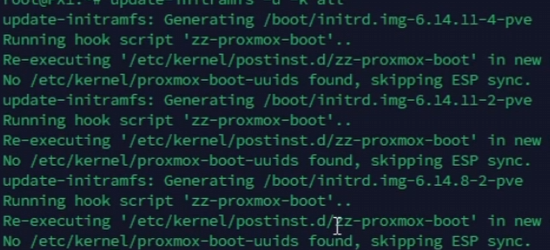
Then, restart your physical Proxmox machine. Although in Linux it’s often said that a restart isn’t necessary, some processes like this one require a full reboot.
Verifying ZFS ARC Changes
cat /sys/module/zfs/parameters/zfs_arc_min
cat /sys/module/zfs/parameters/zfs_arc_max
The values assigned in the previous step should appear.

Another way to check is with a more detailed command. It will show the current ARC status along with the minimum and maximum we set:
arc_summary | head -20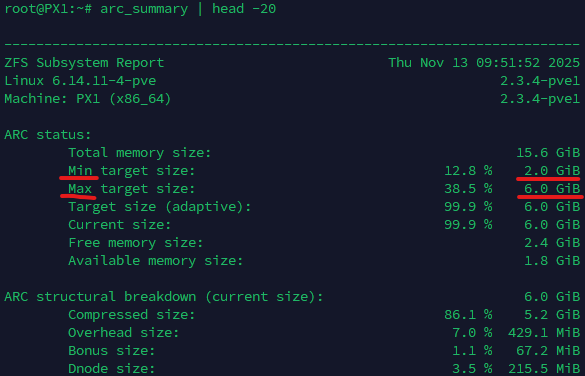
Showing Current RAM Consumption in ARC
This command is excellent for seeing real-time consumption. For the next 10 seconds, it will show:
arcstat 1 10Once launched, it will show something like this:
We see that we have a size of 6GB, which is what it’s using right now; our maximum.
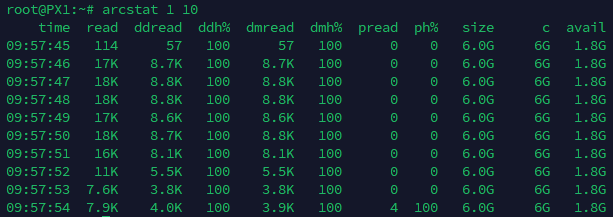
To understand what each column of this command means, here is an explanatory table:
| Column | Meaning | Explanation |
|---|---|---|
| time | Sampling time | Exact timestamp of when the metric was captured (HH:MM:SS format) |
| read | Total ARC reads | Read operations accessing the ARC cache (in MB/s) |
| ddread | Deduplicated data reads | Reads of blocks that have been deduplicated (in MB/s). High value = active deduplication |
| ddh% | Deduplicated data hit ratio | Percentage of hits in the ARC cache for deduplicated data (0-100%) |
| dmread | Metadata reads | Reads of pool metadata (indexes, inodes, etc.) in MB/s |
| dmh% | Metadata hit ratio | Percentage of hits in the ARC cache for metadata (0-100%) |
| pread | Prefetched reads | Anticipated/predicted reads by the ZFS prefetcher (in MB/s) |
| ph% | Prefetch hit ratio | Percentage of prefetcher hits in the cache (0-100%) |
| size | Current ARC size | Actual memory used by the ARC cache (in GB, KB, MB, etc.) |
| c | Target ARC size | Target/configured size of the cache (your zfs_arc_max) |
| avail | System available memory | Free available RAM in the system (not used by anything) |
Troubleshooting and Technical Considerations
Read performance loss (IOPS)
If you set zfs_arc_max too low (less than 2GB), you will notice severe sluggishness when reading data, as ZFS will rely entirely on physical disks instead of RAM cache.
Changes don’t persist after reboot
Make sure you executed update-initramfs -u -k all after modifying the file in /etc/modprobe.d/. Without this, the old kernel will load with the default values on the next boot.
With this quick guide, you will have limited the RAM for ARC and avoid surprises with consumption. And as always, as it’s customary to say: If this post has helped you, share it with other administrators who can benefit. And follow me for more real experiences from the homelab trenches.